
Saving & downloading images
Each scanner is different. Open the card for the machine you’re using to see the steps.
Sonosite PX
Salford Royal · ICU
Salford Royal · ICU
Power on — find the Sonosite, make sure it’s plugged in, and switch on with the button at the back.

Tap Patient Information to start a new patient scan.

Enter patient details. Change transducer and exam in the top-right corner, then tap Scan.

Perform the scan. Save video clips with the movie icon, stills with the camera icon. When finished, tap END STUDY top-left and confirm Yes.

Re-enter Patient Information and select Patient List on the left. Tap the study to highlight it blue.

Tap Send to at the bottom, then choose USB.

Insert your FAT32-formatted USB stick into the port at the back-right of the machine.

The USB appears on screen. Highlight it and tap Export to transfer the images.

A USB icon appears next to the scan when transfer is complete. You can continue scanning or remove the USB and shut down.

GE Vivid IQ
Salford Royal · ICU
Salford Royal · ICU
Power on — locate the GE Vivid IQ, plug it in, and switch on.

Tap Patient on the touchscreen (bottom-left) to start a new patient scan.

Log in: Machine 1 — Operator ADM, no password. Machine 2 — Operator ADM, password ulsadm.

Tap New Patient and enter details. Use the auto-generated scan ID (e.g. AC01) — never real patient details for training scans.

Perform the scan. Press the Store button to save images.

Press End Exam when finished.

Open Image Manager to review stored images.
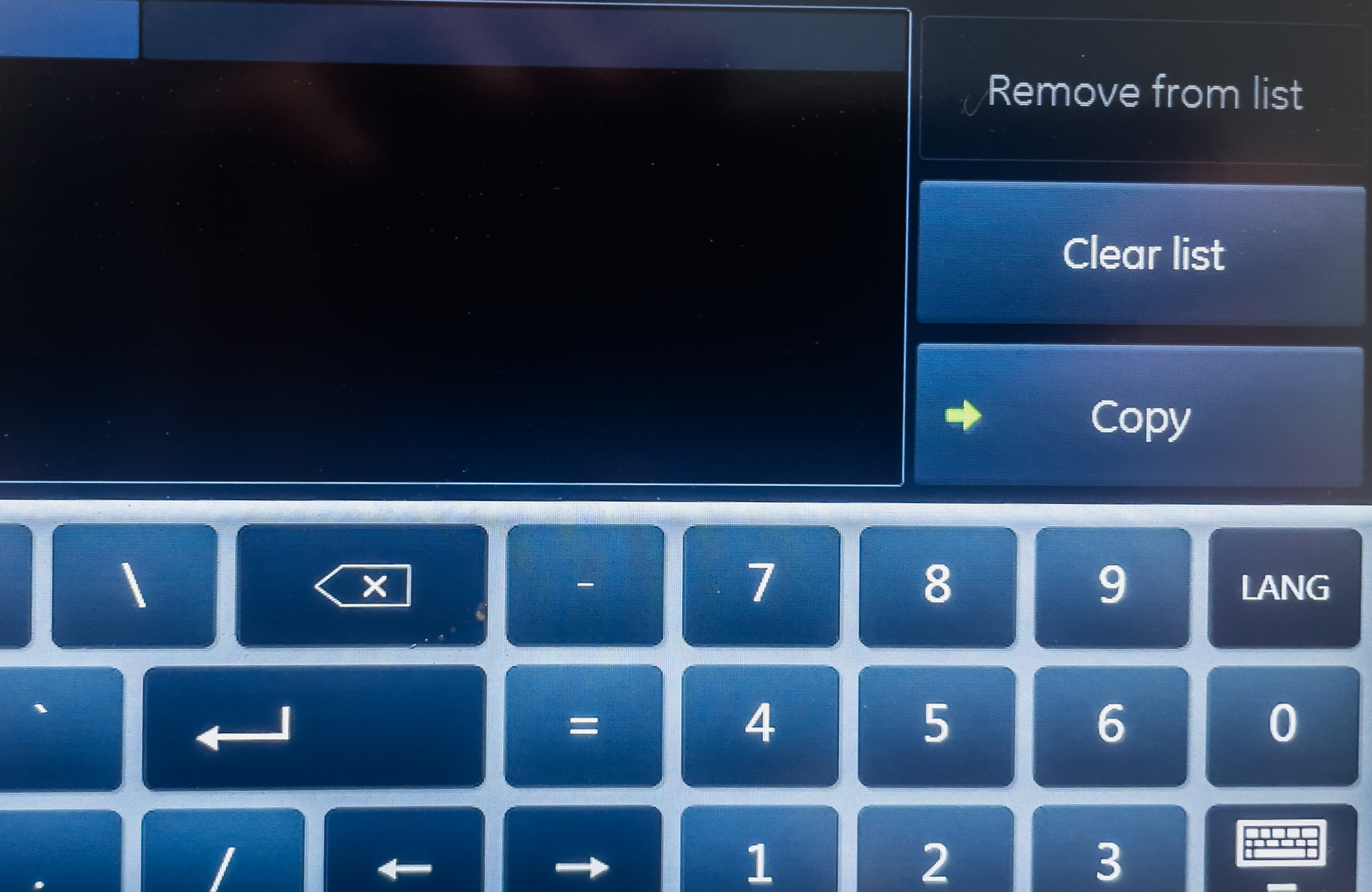
Insert USB stick. Select the study and choose Export from the menu.

Pick Export as MPEG (anonymised) to remove patient identifiers from the exported files.

Confirm the destination is the USB stick. Wait for the transfer to finish, then safely remove the USB.

GE Venue
Fairfield General · ICU
Fairfield General · ICU
Power on and log in — switch on the GE Venue and log in.
Tap New Patient on the touchscreen. Use the auto-generated scan ID (e.g. AC01) as the identifier — never real patient details for training.
Perform the scan. Freeze and save each image with the P1 store button. Save clips with the dedicated clip-store button.
End the exam when the scan is complete.
Export to USB — insert the USB stick, open the patient archive, select the study and export.
AC01) as the identifier — never real names or hospital numbers.