
Practical guides
Saving & downloading images
Each scanner is different. Open the card for the machine you’re using to see the steps.
Salford Royal · ICU
Sonosite PX
Power on
Find the Sonosite, make sure it’s plugged in, and switch on with the button at the back.

Open patient information
Tap Patient Information to start a new patient scan.

Enter patient details
Enter patient details (these can be de-identified on export; accurate info enables later clinical comparison). Change transducer and exam in the top-right corner, then tap Scan.

Scan and end study
Perform the scan. Save video clips with the movie icon, stills with the camera icon. When finished, tap END STUDY top-left and confirm Yes.

Open the patient list
Re-enter Patient Information and select Patient List on the left. Tap the study to highlight it blue.

Send to USB
Tap Send to at the bottom, then choose USB.

Insert USB stick
Insert your FAT32-formatted USB stick into the port at the back-right of the machine.

Export images
The USB appears on screen. Highlight it and tap Export to transfer the images.

Confirm transfer
A USB icon appears next to the scan when transfer is complete. You can now continue with more scans, or remove the USB and shut down.

Salford Royal · ICU
GE Vivid IQ
Power on
Locate the GE Vivid IQ, plug it in, and switch on.

Open Patient menu
Tap Patient on the touchscreen (bottom-left) to start a new patient scan.

Log in
Log in to enable image storage. Machine 1 (no password): Operator ADM, password blank, tap Log On. Machine 2 (password on top): Operator ADM, password ulsadm.

Create a new patient
Tap New Patient and enter the patient’s details. Note: details can’t be removed on export — use a personal identifier or anonymise before sharing. When done, tap Create.

Scan and store clips
Perform the scan. Save clips with the STORE button to the right of the trackpad.

End the exam
Tap End Exam — this takes you to the patient list. You can also reach it any time via Patient (bottom-left).

Insert USB and open Image Manager
Insert a USB stick at the back of the machine. Open the patient study from the patient list, then select the images to export and open the Image Manager.
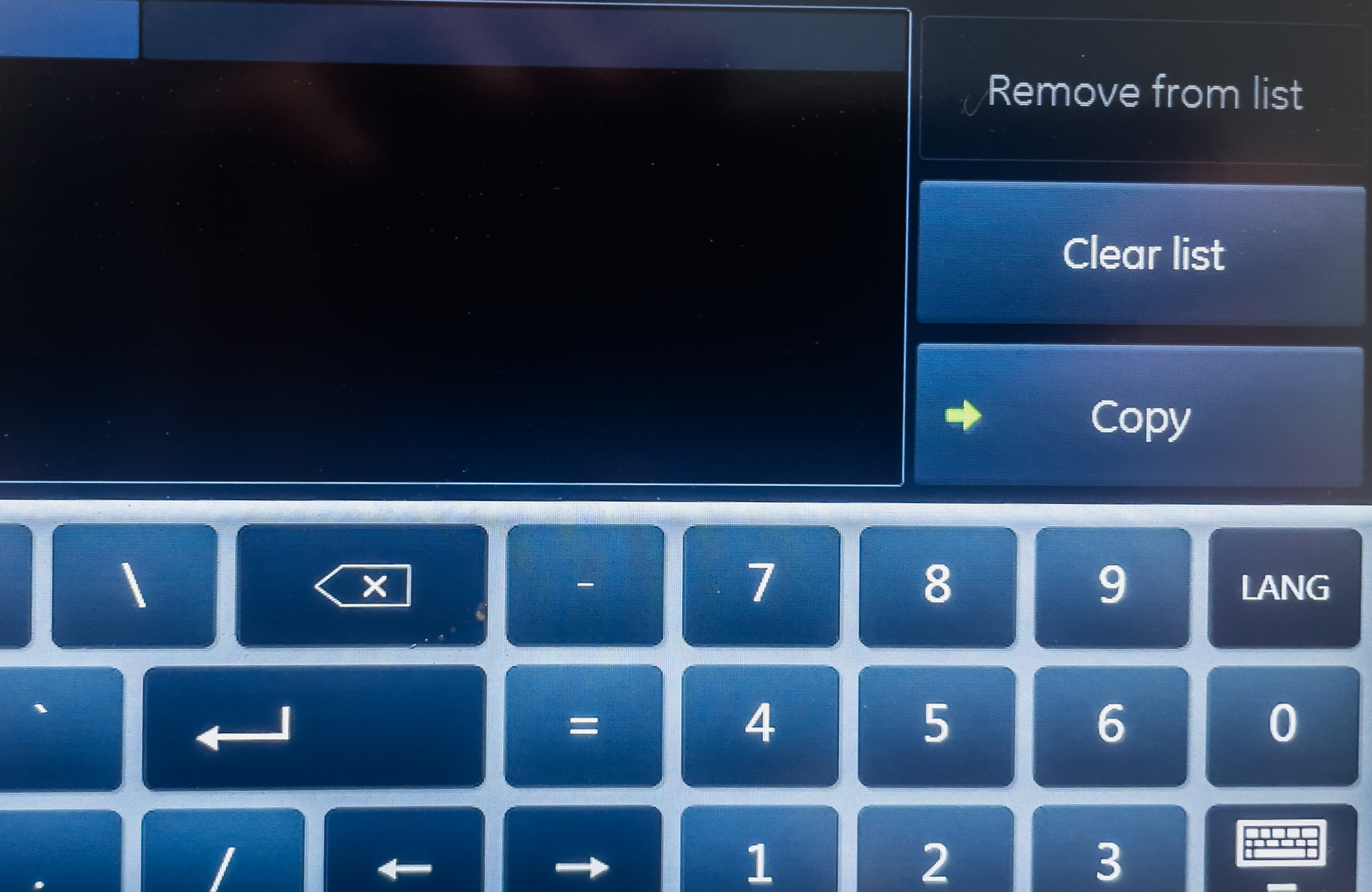
Select Export
Choose Export from the menu.

Choose anonymised export
Pick Export as MPEG (anonymised) to remove patient identifiers from the exported files.

Save to USB
Confirm the destination is the USB stick. Wait for the transfer to finish, then safely remove the USB.

Fairfield General · ICU
GE Venue
Power on and log in
Switch on the GE Venue and log in.
To do: Photograph the login screen and confirm the username/password used on the Fairfield Venue.
Start a new exam
Tap New Patient on the touchscreen. Enter the patient’s details — use the auto-generated scan ID from your report (e.g. AC01) as the identifier. Never use real patient details for training.
To do: Photograph the New Patient touchscreen and the patient-detail fields.
Scan and save images
Perform the scan. Freeze with the freeze button, then save each image with the P1 store button. Save clips with the dedicated clip-store button.
To do: Photograph the freeze + P1 store buttons and any clip-store control.
End the exam
When the scan is complete, tap End Exam. This closes the active study and returns you to the patient list.
To do: Photograph the End Exam button.
Open the completed study
From the patient list, tap the study you just ended to open it. This shows the full set of saved images and clips.
To do: Photograph the patient list with a study highlighted and the opened study view.
Select all images
In the study view, tap Select All (or tap individual thumbnails to choose specific ones). Selected images are highlighted.
To do: Photograph the Select All control and what selected thumbnails look like.
Insert USB and Send to
Plug a FAT32-formatted USB stick into the port at the back of the machine. Tap Send to → choose USB. If the option is available, choose MPEG (anonymised) to strip patient identifiers.
To do: Photograph the USB port, the Send to menu, and the destination/format options.
Confirm transfer and remove USB
Wait for the transfer to finish. Safely eject the USB stick before removing it. Clean the probe and machine. Cleaning & infection control →
To do: Photograph the transfer-complete confirmation and the eject control.
AC01) as the identifier — never real names or hospital numbers.