
Imaging & review
SonoClipShare
SonoClipShare is the platform we use to share ultrasound clips for remote review and learning. Sign-in is free.
What it's for
Anonymous, password-protected sharing of clips and stills with a supervisor for FUSIC accreditation, case discussion, and teaching files. Learners upload, supervisors review and comment.
Step-by-step walkthrough
Sign in to SonoClipShare
Go to sonoclipshare.com and click Sign In. Once verified, you land on My Archives — your library of uploaded scan archives.
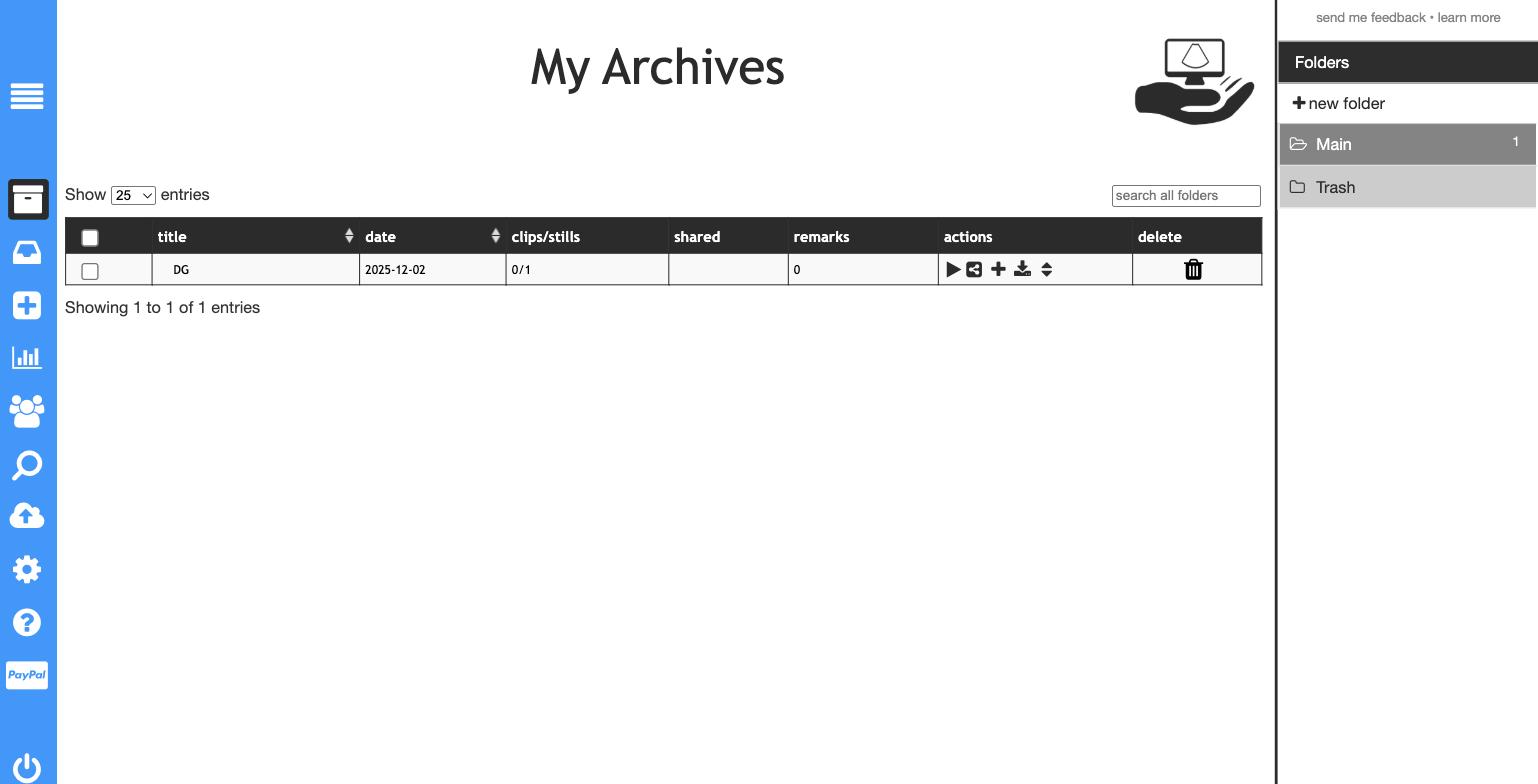
Create a new archive and name it
Click the + icon in the left sidebar. Name the archive using the auto-generated ID from your logbook report — for example AC01 — so your mentor can match it to the correct entry.
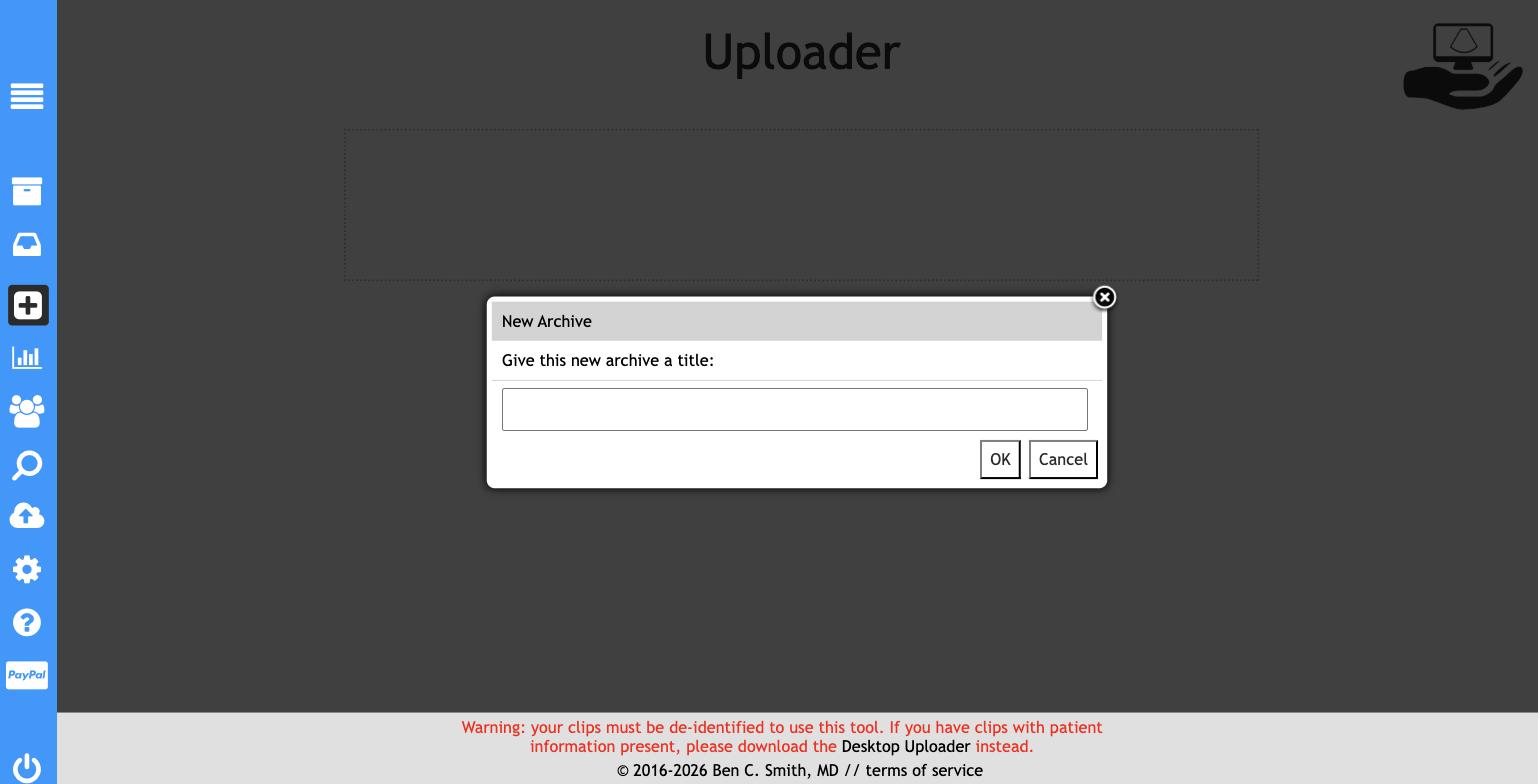
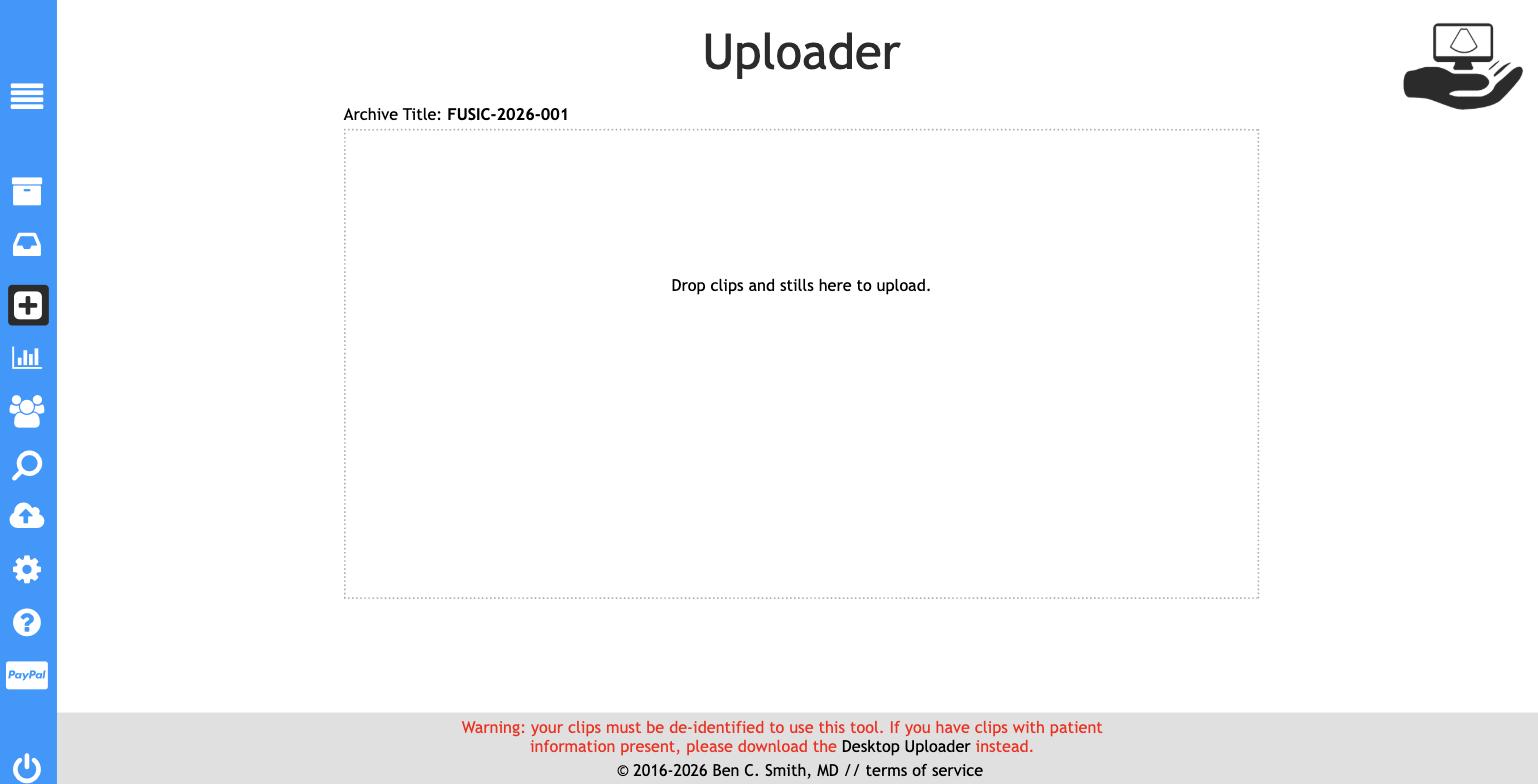
Upload your clips and stills
Plug in your USB stick and drag the clip and still files into the drop zone, or click to browse. The uploader removes identifiable DICOM metadata automatically — confirm no patient name or ID is visible before proceeding.
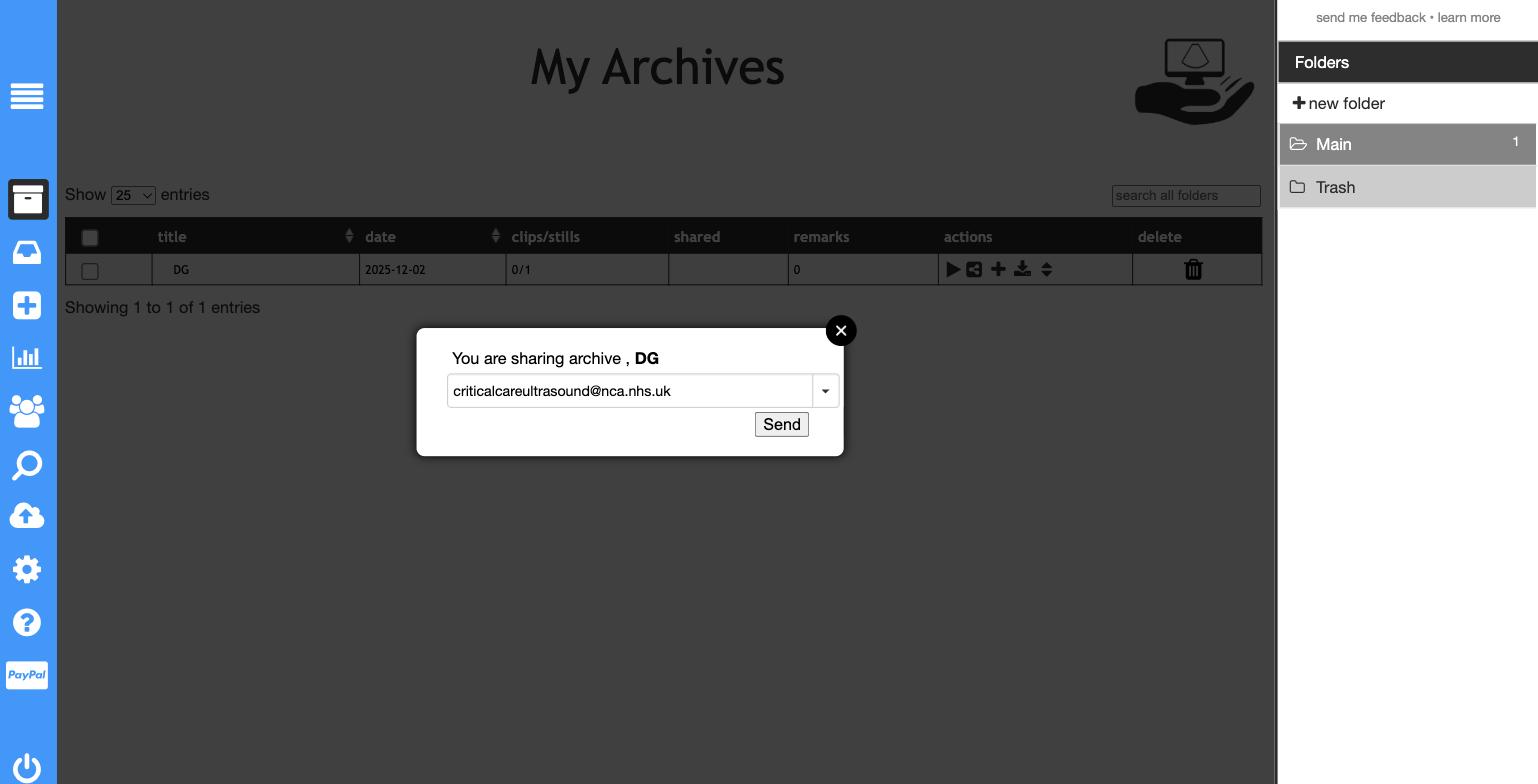
Share the archive with your mentor
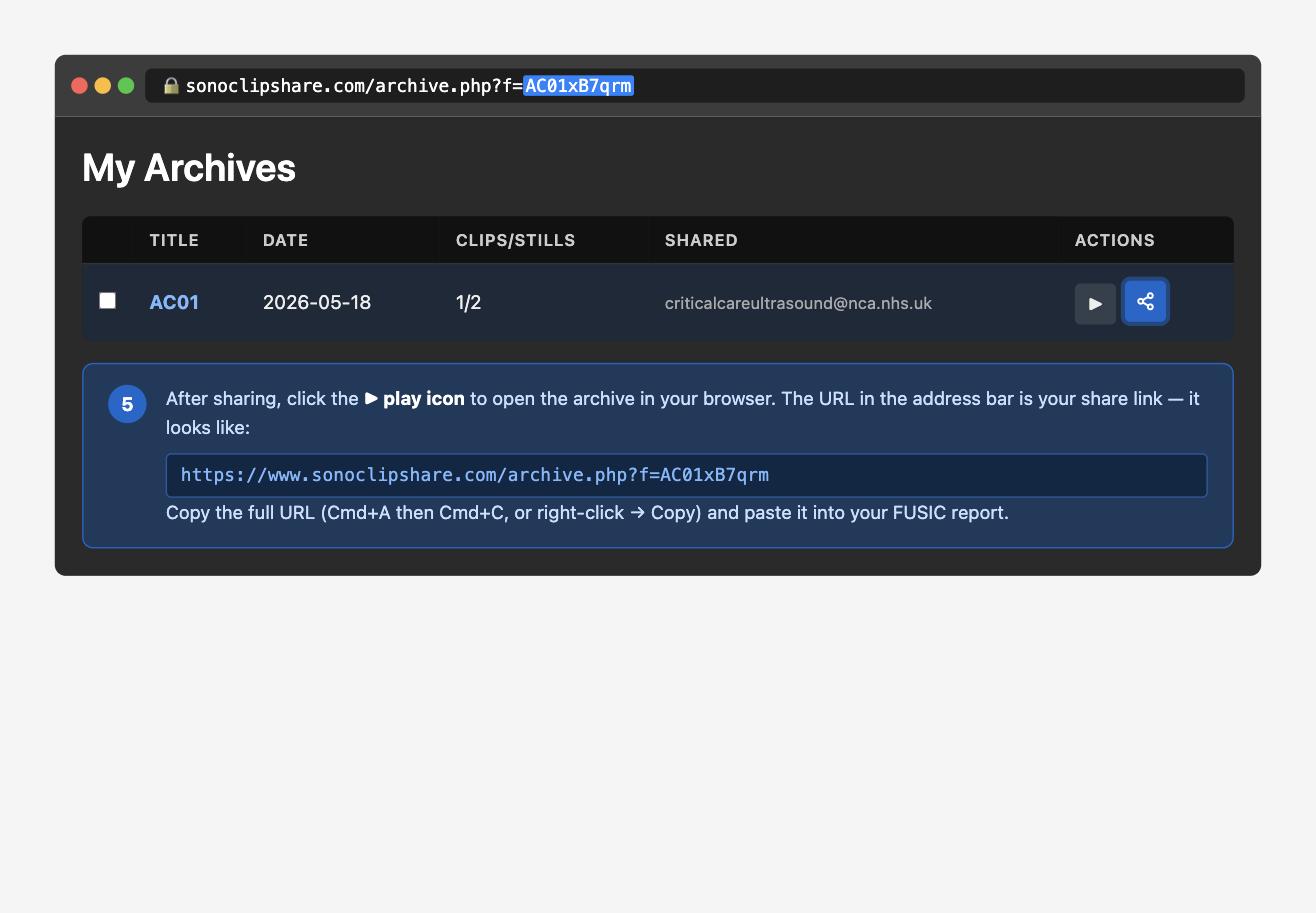
Back on My Archives, click the share icon (second icon in the Actions column). Type criticalcareultrasound@nca.nhs.uk and click Send. SonoClipShare will email your mentor and generate a shareable link.
Copy the share link
After sharing, click the ▶ play icon (first icon in Actions) to open the archive in your browser. The URL in the address bar is the link to copy — it looks like sonoclipshare.com/archive.php?f=…. Copy the full URL and paste it into your FUSIC report.
Paste the link into your FUSIC report
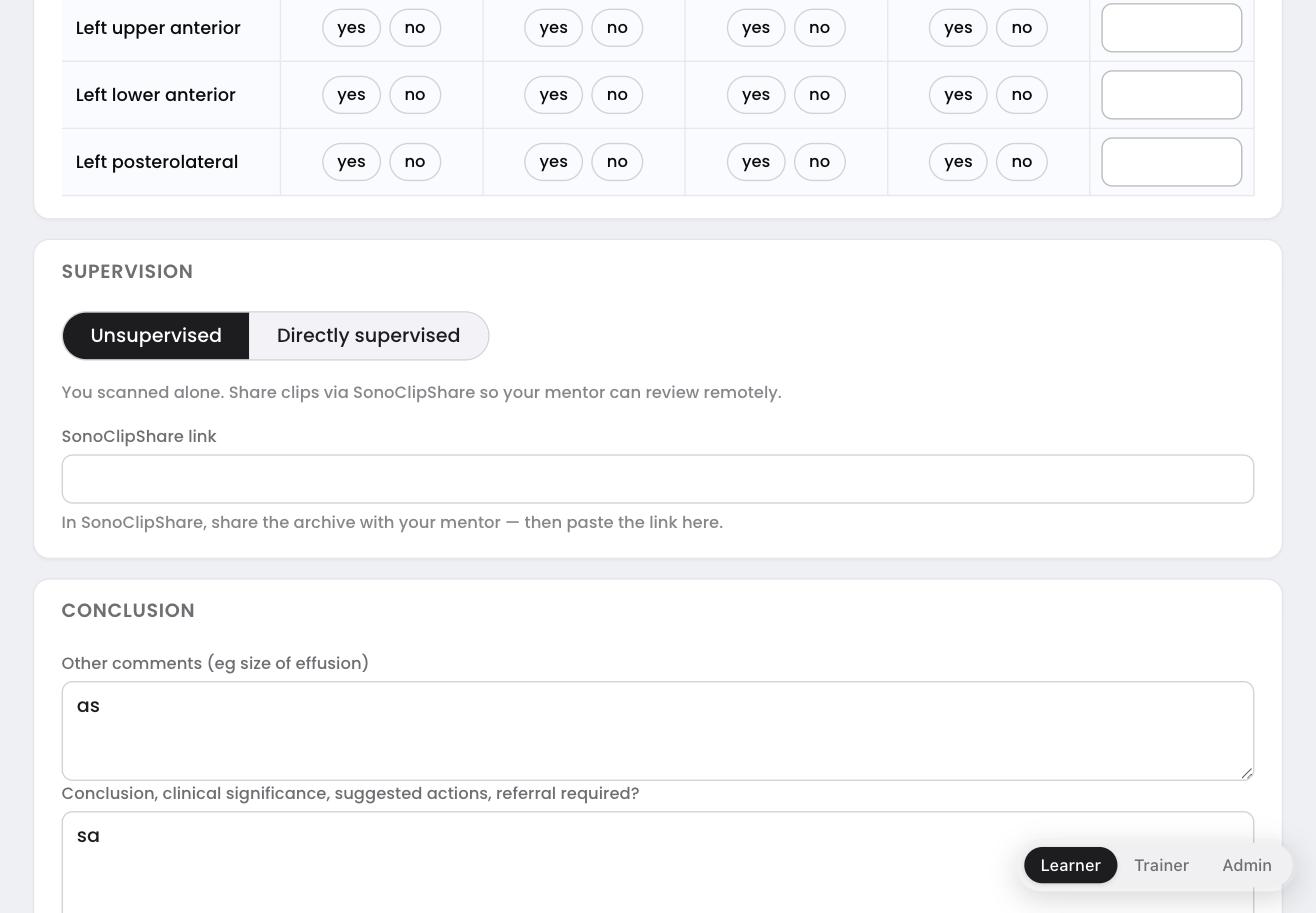
Open your logbook report and click Edit. In the Supervision section, select Unsupervised and paste the copied link into the SonoClipShare link field, then save. Your mentor will see the link alongside your report when they review it.
Important
Always check uploads contain no patient-identifiable information before sharing. Even with the desktop uploader's de-identification, you remain responsible.
SonoClipShare is a third-party tool maintained by Dr Ben Smith. It is not part of this site.